Codes from email, step by step
Let the server read Steam, EA, Epic and Battle.net sign-in codes from your mailbox, so nobody has to send /code.
Updated 2026-11-06
What it does#
When a launcher on your server signs in, it may ask for a security code. Normally the bot writes to you and you reply /code. If the launcher sends that code by email, the server can read it from the mailbox itself and type it in - nobody has to be awake.
It works for Steam, EA, Epic and Battle.net, for every account whose codes go to the mailbox you store. The server only reads the mailbox: it never marks mail as read, moves it or deletes it, and the mailbox password stays on the server - it is never sent to the cafe's computer.
It does not help when the code comes from a phone app: the Steam mobile authenticator, the Battle.net authenticator, or an approve-on-your-phone screen. Those still need you.
Note: Anyone who can open that mailbox can sign in to the game accounts on it. Use a mailbox that is only for these accounts, give it a strong password, and store only an app password here - never the mailbox's real password.
How to use it#
1. Check where each Steam account sends its code#
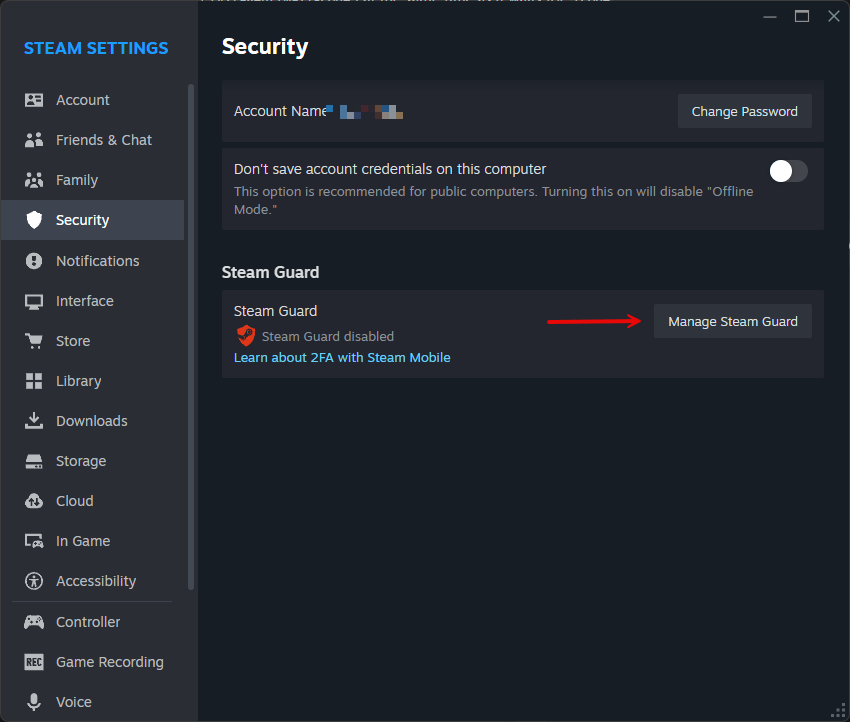
In the Steam client open Steam -> Settings -> Security. Under Steam Guard it says which kind the account uses; press Manage Steam Guard to see or change it.
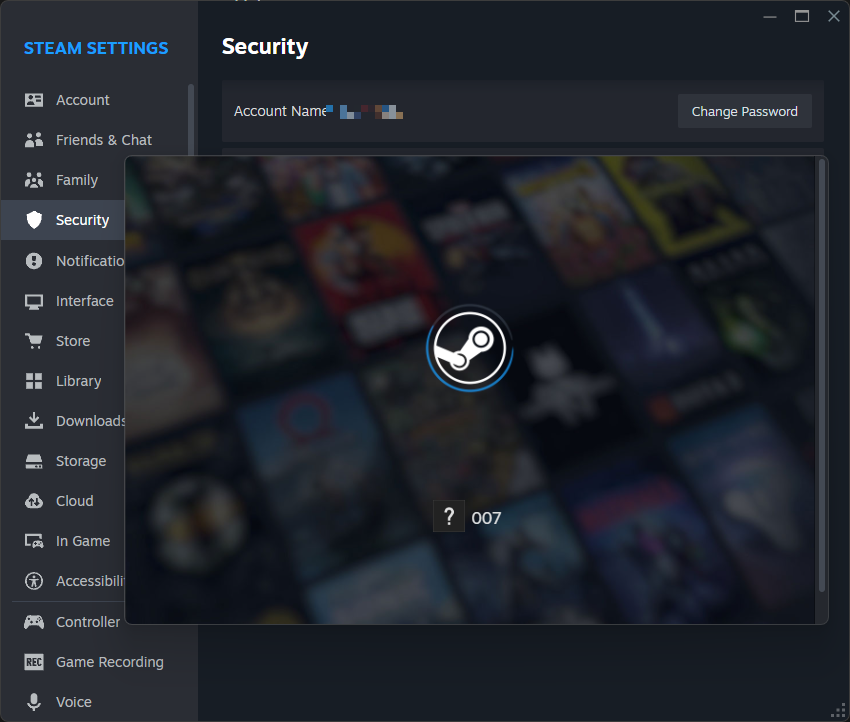
If the window only shows the Steam logo and a ? 007 under it, the Steam client's own page is stuck (it happens). Close it and open the same page in a browser instead: store.steampowered.com/twofactor/manage - sign in there with the same account.
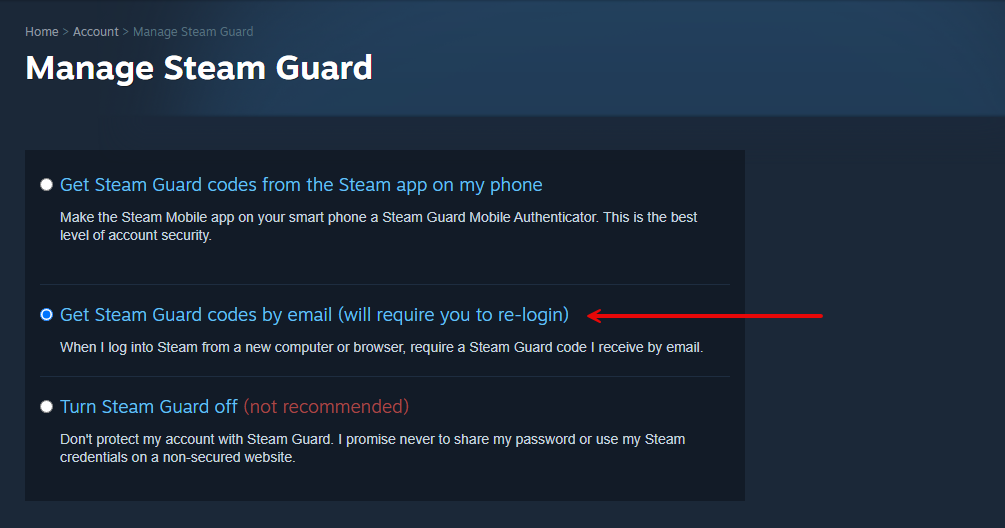
The page tells you one of:
- Steam Guard Mobile Authenticator - codes come from the phone app; the email reader cannot help.
- Steam Guard via email - codes come by email; this is the one the email reader handles.
- Steam Guard turned off - no code is ever asked.
2. If you want email codes: switch the account (optional)#
Only do this if the account is on the mobile authenticator or has Steam Guard off.
- On the mobile authenticator: in the Steam mobile app open Steam Guard and choose Remove Authenticator. Without the phone you need the account's recovery code (the R-code you wrote down when you set it up).
- On Manage Steam Guard choose Get Steam Guard codes by email. Steam signs the account out everywhere, so sign it in again on the server once (it asks for an email code - the first test).
Warning: The mobile authenticator is the safer of the two, and Steam may hold trades and Market listings for a while after you change it. For a cafe account that only plays games this rarely matters - but decide it per account.
3. Yandex mailbox: just press Connect Yandex Mail#
If the codes go to a Yandex mailbox, you do not need an app password at all:
- In Yandex Mail open All settings -> Email clients and tick From the imap.yandex.ru server via IMAP. Save. (Without it no mail program can read the box - the page tells you if it is off.)
- On your dashboard, under Accounts, press Connect Yandex Mail.
- Yandex's own page opens and asks you to allow GamesUpdater to read your mail and see your address. Press Allow. You come back to a page that says the mailbox is connected.
The permission is read-only, nobody types a password into our page, and you can withdraw it any time in your Yandex ID (Security -> connected services). The server renews it by itself. Then skip to step 6.
4. Any other mailbox: make an app password#
An app password is a separate password that lets one program read the mail. Your real password keeps working as before, and you can delete the app password at any time to cut the server off.
Gmail
- Turn on 2-Step Verification for the Google account (Google Account -> Security). App passwords do not exist without it.
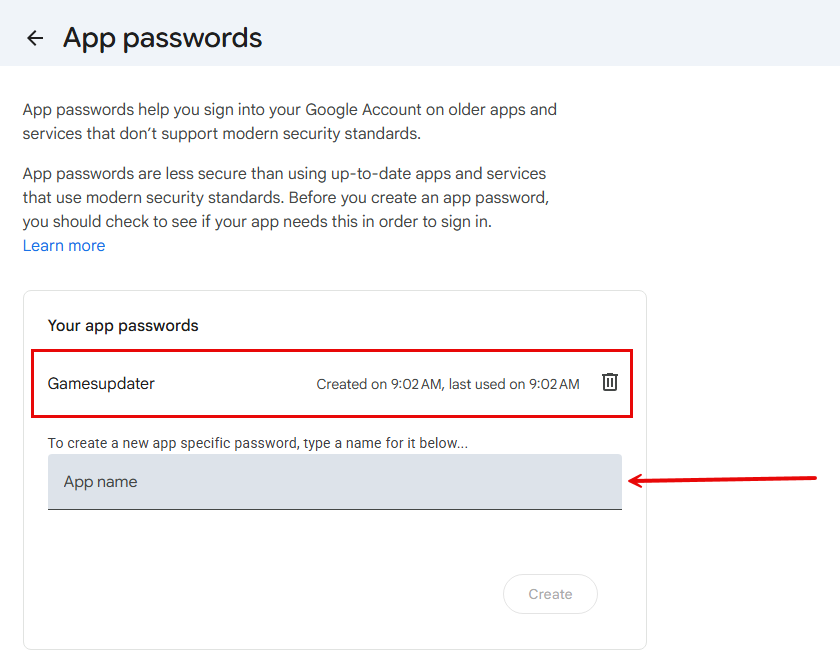
- Open myaccount.google.com/apppasswords, type a name such as "GamesUpdater" in App name, and press Create.
- Copy the 16-letter password Google shows - it is shown only once. The spaces in it do not matter. The name then stays in Your app passwords; its bin icon deletes it and cuts the server off.
Changing the Google password later deletes every app password; make a new one then. Work or school (Google Workspace) accounts may not offer app passwords at all.
Yandex (only if you prefer an app password to the button in step 3)
- In Yandex Mail open All settings -> Email clients and tick From the imap.yandex.ru server via IMAP and App passwords and OAuth tokens. Save.
- In your Yandex ID open Security -> App passwords, create one of type Mail, name it "GamesUpdater", and copy it.
Mail.ru
- In your Mail ID settings open Security -> Passwords for external applications.
- Add one, name it "GamesUpdater", allow it to read mail (IMAP), and copy the password.
Mail.ru has been testing a paid plan for access from outside programs on some mailboxes. If the page below says the mailbox refused the password although it is right, that is the likely reason - use a Gmail or Yandex mailbox instead.
Other providers work too if they offer IMAP over port 993: on the dashboard type the password as {"host":"imap.example.com","password":"..."}. Outlook and Hotmail cannot be used - Microsoft does not allow reading mail with a password.
5. Add the mailbox on your dashboard#
- Open your dashboard (send /dashboard to the bot for a fresh link) and go to Accounts.
- Scroll to Email for sign-in codes and pick where the code emails arrive: Yandex, Gmail, Mail.ru or Other. Each one shows its own short steps with links.
- Type the email address and the app password from step 4, and press Connect. The page logs in to the mailbox before it saves it, so a wrong or normal password is refused straight away with the reason.
- The mailbox then shows Works, how it was connected, when it was last checked and when it last read a code. Check now logs in again whenever you want to be sure; Disconnect removes it.
One mailbox can serve several game accounts: each code is matched to the account it was sent for. The game accounts themselves must be stored on the dashboard too (Steam, EA, Epic or Battle.net).
6. Test it#
- On the server, sign the Steam account out (Steam -> Change account / Sign out), so Steam has to ask for a code.
- Send /signin steam yourname to the bot (the account name as stored on the dashboard).
- Wait a few minutes. With the mailbox working, Steam signs in without the bot asking you for /code. If no email arrived within a minute, the bot asks you as usual - and if the email then comes after all, it tells you it no longer needs your code.
A stored login is tried at most once a day per account, so test with an account you have not asked to sign in today.
What the reply means#
| What you see | What it means |
|---|---|
| Steam signed in and the bot never asked for /code | The code came from the mailbox - it works |
| The bot asks for /code after about a minute | No code email arrived in time; send it as usual |
| Got the code from the email myself - no need to send it | The email came after you were asked; ignore the ask |
| "the mailbox refused the password" when adding it | Use an app password, not the normal one (or the mailbox needs IMAP switched on) |
| "the mail server did not answer" when adding it | Check the address; for an unknown provider give the IMAP host as shown in step 4 |
| The mailbox shows Not working | The app password was changed or deleted (or Yandex withdrew the permission); the line under it says which - connect it again |
| "could not open the mailbox" after Connect Yandex Mail | The Yandex ID has no mailbox yet (made with only a phone number - add a login and password at mail.yandex.ru), or IMAP is off (All settings -> Email clients); then press Connect again |
When something needs you#
- The bot still asks for /code every time. Check step 1: the account may be on the mobile authenticator, so there is no email to read. Or the code email lands in another mailbox than the one stored.
- It worked and then stopped. The mailbox password was changed (this deletes Gmail app passwords), or the app password was removed. Make a new one and add the mailbox again.
- You want to stop it. Press Disconnect on the mailbox on the dashboard, or delete the app password at your mail provider - either cuts the server off at once.